
IPTV UAE plans and prices
From $18 for 1 month to $79 for 12 months, everything included.
This IPTV Firestick UAE guide shows you how to install IPTV on Firestick from start to finish: preparing the stick, installing a player app, entering your IPTV UAE login and getting the smoothest picture on UAE home internet. It works for the Fire TV Stick, Fire TV Stick 4K, Fire TV Stick 4K Max and Fire TV Cube.

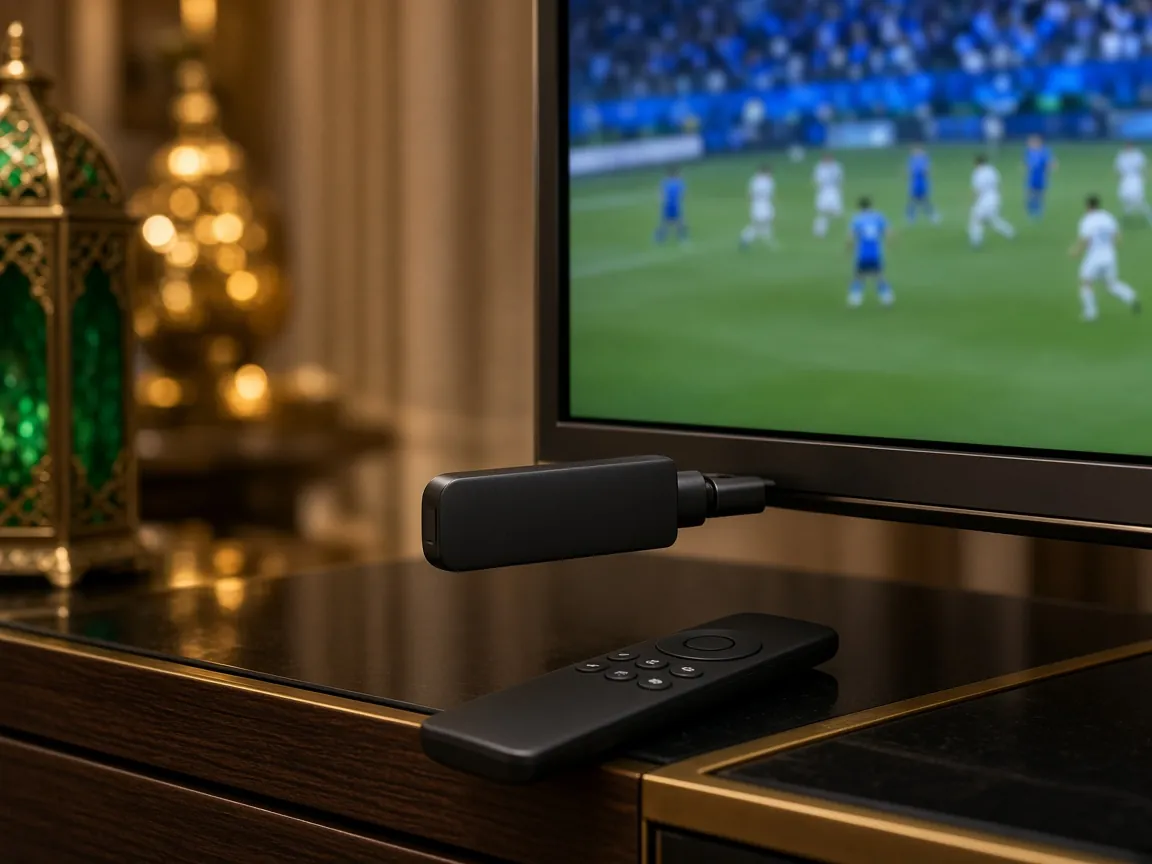
Power the stick from its own adapter, not the TV’s USB port. Too little power is a common cause of a Firestick freezing or restarting.
Fire TV menus change a little between software updates, but the steps stay the same.
Go to Settings > My Fire TV > About > Check for Updates and install anything waiting. An up-to-date stick avoids most app problems.
From the home screen choose Find > Search, type Downloader, select the app with the orange icon and choose Get or Download. Downloader lets you install apps that aren’t in the Amazon Appstore.
Tip: If the player app we recommend is in the Amazon Appstore for your account, install it from there instead and skip to step 6.
Go to Settings > My Fire TV > About, highlight your device name and press the select button on the remote seven times. A message confirms you are now a developer. If Developer Options already appears under My Fire TV, skip this step.
Go back to Settings > My Fire TV > Developer Options > Install unknown apps and switch Downloader to On. On older sticks this setting is called Apps from Unknown Sources.
Open Downloader and allow access to storage when asked. Type the download code or address we sent you on WhatsApp into the box and choose Go. When the download finishes, choose Install, then Done.
Tip: Downloader then offers to delete the installation file. Choose Delete to save space on the stick.
Open the player app and choose the login type that matches the details we sent: an Xtream Codes API login (name, username, password and server URL) or an M3U playlist URL. Type everything exactly, including capital letters, and choose Add user or Log in.
The first time, the app downloads the channel list, the movie and series library and, where available, the TV guide. This can take a minute or two. Then open Live TV and choose a category.
Press Home, open Your Apps & Channels, highlight the player, press the menu button (three lines) and choose Move to front. Now it opens with one click.
An Ethernet adapter for Fire TV plugs into the stick’s power cable and gives a steady wired connection. It is the best single upgrade for 4K, especially in tower flats where Wi-Fi is crowded.
Under Settings > Display & Sounds > Display, set Video Resolution to Auto and, if your model has it, turn on Match Original Frame Rate. This removes judder from sport and films.
| Problem | Likely cause | What to do |
|---|---|---|
| Downloader won’t install the app | Unknown apps not allowed | Check step 4: Install unknown apps must be On for Downloader. |
| Login error | A typing mistake | Re-enter the username, password and URL exactly as sent, with no extra spaces. |
| Channels buffer | Weak Wi-Fi or a busy network | Use 5 GHz Wi-Fi or an Ethernet adapter, and pause other downloads. |
| Sound but no picture | Decoder setting | In the player’s settings, switch between hardware and software decoding. |
| Stick restarts or freezes | Low power or heat | Use the original power adapter and the HDMI extender. |
If none of these help, contact our support team on WhatsApp. We’re available 24/7.
For a 4K TV, choose a 4K model such as the Fire TV Stick 4K or 4K Max, which have more memory and faster Wi-Fi. For an HD TV, the standard Fire TV Stick is enough.
Yes, it is a standard Fire TV setting. Only install apps from sources you trust, such as the link we send you, and allow unknown apps for Downloader only.
Older sticks have little space. Delete installation files after installing, clear the cache of the apps you use and remove apps you don’t need.
Ask us on WhatsApp before you set up extra devices and we’ll explain what your plan covers.
From $18 for 1 month to $79 for 12 months, everything included.
Send a photo of your screen and we’ll guide you. Support is available 24/7.

Using Google TV or an Android box instead? Follow this guide.
Order on WhatsApp and we’ll send your login with the download code for your Fire TV Stick. Plans from $18.